
 8086011333
How to Protect Your Personal Information When Using Public Wi-Fi
October 14, 2026
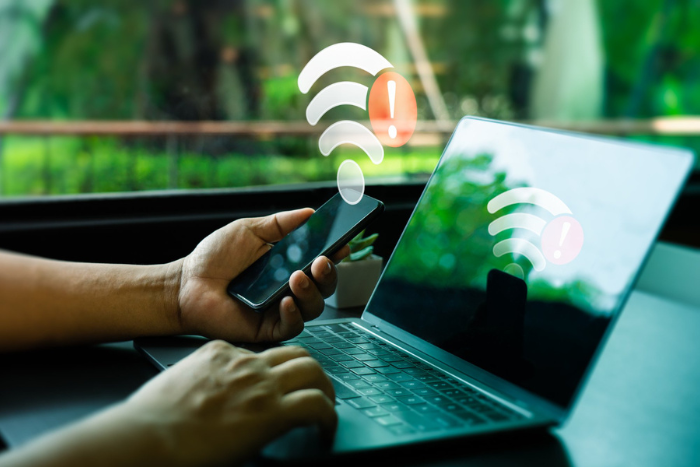
Public Wi-Fi makes it convenient to access the internet while travelling, working remotely, or spending time in public places. Whether you are checking emails, browsing websites, or attending an online meeting, connecting to an available Wi-Fi network can help you stay online without using your mobile data.
However, public Wi-Fi networks may not always offer the same level of security as your home network. Unsecured connections, fake Wi-Fi hotspots, and unsafe browsing practices can expose your personal information to potential risks.
Understanding these public Wi-Fi security practices can help you protect your accounts, devices, and sensitive information while staying connected.
1. Connect Only to Trusted Wi-Fi Networks
Before connecting to a public Wi-Fi network, confirm that it belongs to the business or organisation providing the service. For example, if you are visiting a hotel, restaurant, or airport, ask the staff for the correct network name.
Cybercriminals may create fake hotspots with names similar to legitimate networks to trick users into connecting. Once connected, users may unknowingly expose their browsing activity or personal information.
Avoid joining unfamiliar networks simply because they offer free internet access. When possible, confirm the network name and login instructions before using the Wi-Fi connection.
2. Avoid Accessing Sensitive Information on Unsecured Networks
Public Wi-Fi can be useful for everyday browsing, but it is best to exercise caution when accessing sensitive accounts.
Avoid carrying out banking transactions, accessing confidential work documents, or entering sensitive personal information on networks you do not trust. If you need to complete an important transaction, consider switching to mobile data or another trusted internet connection.
Always check that websites use HTTPS, which helps encrypt information exchanged between your browser and the website. However, HTTPS does not guarantee that a website itself is legitimate, so check the website address carefully before entering your details.
3. Use a VPN When Appropriate
A Virtual Private Network (VPN) creates an encrypted connection between your device and a VPN server. This can help protect your internet traffic from being viewed by others on the same local network.
A VPN may be useful when you need to connect to public Wi-Fi for work or other activities involving sensitive information. Choose a reputable VPN provider and understand its privacy policy before using the service.
Remember that a VPN does not make you completely anonymous or protect you from every online threat. Following basic internet security practices, such as using strong passwords and avoiding suspicious websites, remains important.
4. Turn Off Automatic Wi-Fi Connections
Many smartphones, tablets, and laptops can automatically connect to previously saved Wi-Fi networks. Although convenient, this feature may cause your device to connect to an unfamiliar or potentially unsafe hotspot.
To reduce this risk, disable automatic connections to public networks and review your saved Wi-Fi networks periodically.
You can also turn off Wi-Fi when you are not using it. These simple Wi-Fi safety tips give you greater control over which networks your device connects to and help prevent accidental connections.
5. Enable Two-Factor Authentication
A strong password is essential for protecting online accounts, but an additional layer of security can provide further protection.
Two-factor authentication (2FA) requires an additional verification step when signing in, such as an authenticator-app code or another approved method. Even if someone obtains your password, this extra step can make it more difficult for them to access your account.
Enable two-factor authentication for important accounts, including email, banking, and work-related services wherever available. Use unique passwords for different accounts and consider a reputable password manager to manage them securely.
6. Keep Your Devices and Software Updated
Operating system and browser updates often include security fixes that address known vulnerabilities. Using outdated software can leave your device exposed to threats that newer versions may have resolved.
Before connecting to public Wi-Fi, make sure your operating system, browser, and security software are up to date.
You should also enable your device’s firewall and use its built-in security features. Avoid installing applications or browser extensions from unfamiliar sources, especially when connected to an untrusted network.
7. Disable File Sharing and Avoid Suspicious Links
File sharing and network discovery features can make it easier for devices to communicate with one another. However, leaving these features enabled on public networks may expose information or services that you do not intend to share.
When using public Wi-Fi, set the network profile to public on your computer and disable unnecessary file sharing.
Be cautious of unexpected pop-ups, unfamiliar login pages, and links asking you to enter personal details. Fake Wi-Fi login pages may imitate legitimate services to collect usernames, passwords, or other information.
If a public hotspot requests unusual personal details or asks you to install unknown software, avoid proceeding until you can verify that the request is legitimate.
8. Log Out of Accounts and Forget Public Networks
When you finish using public Wi-Fi, log out of accounts that you no longer need to access, particularly on shared devices. Avoid saving passwords on public computers, and never leave a session open where another person could access it.
On your personal device, forget the public Wi-Fi network after use if you do not expect to reconnect to it. This reduces the possibility of your device automatically joining that network in the future.
If you suspect that your account details have been exposed, change the affected password using a trusted connection and review recent account activity.
9. Choose a Secure Wi-Fi Connection for Everyday Use
While public Wi-Fi is convenient when travelling, a properly secured home network offers greater control over your network settings and connected devices. Use a strong router password, enable WPA2 or WPA3 security where supported, and keep your router firmware updated.
If you are comparing the best broadband connection in Kerala or the best broadband plans in Kerala, consider service availability, connection reliability, speed, and customer support alongside pricing.
Conclusion
Public Wi-Fi offers convenient internet access, but protecting your personal information requires a few simple precautions. Connect only to trusted networks, use HTTPS websites, enable two-factor authentication, keep your devices updated, and avoid accessing sensitive information over networks you do not trust.
A VPN can provide an additional layer of protection, but it should be used alongside other security practices rather than as a complete solution.
Whether you use public Wi-Fi occasionally or rely on a Wi-Fi connection for home for everyday browsing, developing safe internet habits can help protect your digital information and reduce unnecessary security risks.