
 8086011333
How to Check Whether Your Devices Support Gigabit Internet
October 14, 2026
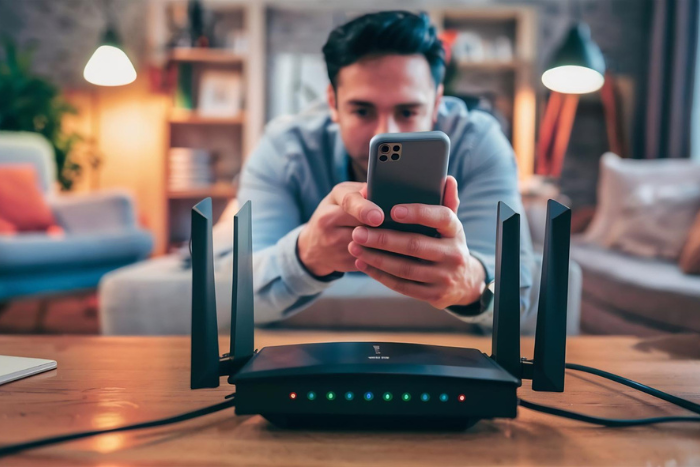
Choosing a high-speed broadband connection can improve your experience when streaming 4K videos, downloading large files, playing online games, and working from home. However, subscribing to a high-speed internet plan does not automatically mean every device in your home can use the full available speed.
Your router, computer, Ethernet cable, Wi-Fi adapter, and network settings can all influence the speeds you achieve. If you are considering a gigabit broadband connection, checking device compatibility before upgrading can help you understand whether your existing setup is ready.
1. What Is Gigabit Internet?
Gigabit internet refers to an internet connection with a speed of up to 1 gigabit per second (Gbps), equivalent to 1,000 megabits per second (Mbps).
A gigabit connection can be useful for households with multiple connected devices, frequent large downloads, cloud backups, 4K streaming, and other bandwidth-intensive activities.
However, the speed you experience depends on several factors, including your broadband plan, network equipment, connected devices, Wi-Fi conditions, and the servers you access.
Before choosing a high-speed plan, check whether your devices and home network can support gigabit speeds.
2. Check Your Computer’s Ethernet Port
An Ethernet connection can provide a more consistent way to test high-speed internet than Wi-Fi. However, not all Ethernet ports support the same maximum speed.
Many modern computers support Gigabit Ethernet, while some older devices may have Fast Ethernet ports limited to 100 Mbps.
To check your computer’s Ethernet capability:
- On Windows: Open Settings and navigate to Network & Internet. Check the Ethernet connection details where available, or open the network adapter properties to identify the adapter’s capabilities.
- On macOS: Check your Mac’s technical specifications or network hardware information to confirm the supported Ethernet interface.
- For external adapters: Check the specifications of your USB-to-Ethernet adapter or docking station.
Look for terms such as Gigabit Ethernet, 10/100/1000 Mbps, or 1000BASE-T. These indicate support for gigabit Ethernet.
Remember that the reported link speed is the connection between your device and the router or network equipment. It does not necessarily represent your actual internet speed.
3. Check Whether Your Wi-Fi Router Supports Gigabit Speeds
Your router plays an important role in distributing internet connectivity to devices throughout your home. If you plan to use a gigabit broadband connection, check both its wired ports and wireless capabilities.
Look for these specifications in the router’s product details or user manual:
- Gigabit WAN port: Supports a wired connection to the broadband modem or ONT at up to 1 Gbps.
- Gigabit LAN ports: Allow compatible wired devices to connect at gigabit link speeds.
- Wi-Fi standard: Wi-Fi 5, Wi-Fi 6, and newer standards can support high wireless speeds, depending on the specific hardware and configuration.
- Supported frequency bands: Dual-band or tri-band capabilities can offer additional wireless options, but do not guarantee gigabit internet speeds.
A router advertised with high combined Wi-Fi speeds may not deliver those speeds to a single device. Real-world performance depends on the router’s specifications, signal strength, interference, and the capabilities of the connected device.
4. Check Your Ethernet Cable
Even if your computer and router support Gigabit Ethernet, the cable connecting them can affect the connection.
For a typical home gigabit Ethernet setup, Cat5e or Cat6 cables are suitable when properly installed and within standard Ethernet distance limits.
Check the label printed on the cable to identify its category. If your connection is limited to 100 Mbps despite using gigabit-capable equipment, try a known-good Cat5e or Cat6 cable and inspect the connectors.
Damaged cables, poor connections, or faulty router ports can also prevent a device from establishing a gigabit link.
5. Check Your Device’s Wi-Fi Capabilities
If you connect to the internet wirelessly, your device’s Wi-Fi adapter matters as much as the router.
An older laptop or smartphone may support only older Wi-Fi standards or have limited wireless capabilities. Even when connected to a modern router, the device may not achieve the speeds available through your broadband plan.
To check compatibility:
- Find your laptop or smartphone’s model number.
- Review the manufacturer’s technical specifications.
- Identify the supported Wi-Fi standard and frequency bands.
- Check whether your device supports the router’s available Wi-Fi bands.
For the best results, use a compatible device near the router when testing speed. Walls, interference, distance, and other connected devices can reduce performance.
6. Check Your Internet Speed
Once you have checked your equipment, run an internet speed test to see how your connection performs.
For a more reliable result:
- Connect a computer directly to a gigabit LAN port on your router using a suitable Ethernet cable.
- Pause large downloads, streaming, and other bandwidth-heavy activities.
- Run a reputable internet speed test.
- Repeat the test at different times if the results vary.
- Compare the results with your subscribed broadband plan.
If your wired connection is much slower than expected, check the Ethernet link speed, cable, router specifications, and other network settings. You can also contact your broadband provider for assistance.
A speed test result can vary due to network conditions, test-server capacity, and the limitations of your device. A gigabit link also has protocol overhead, so a result slightly below 1,000 Mbps can be normal on a gigabit service.
7. What If Your Device Does Not Support Gigabit Internet?
You may not need to replace every device in your home to benefit from a faster broadband plan.
Depending on the limitation, you could consider:
- Using a compatible USB-to-Gigabit Ethernet adapter.
- Upgrading an older router to one with gigabit WAN and LAN ports.
- Replacing a damaged or unsuitable Ethernet cable.
- Using a compatible Wi-Fi adapter if the existing one is limiting performance.
Before purchasing new equipment, identify the actual limitation and check compatibility with your computer, router, and broadband connection.
8. Choose a Broadband Plan That Matches Your Needs
Device compatibility is only one part of choosing a suitable internet service. Your household’s internet usage, number of connected devices, coverage, reliability, and budget should also influence your decision.
If you are comparing the best broadband plans in Kerala, the best fiber broadband in Kerala, or the best internet connection in Kerala, check the speeds offered, available plans, and service coverage at your address.
If you are searching for a Wi-Fi connection near me, a broadband connection near me, or a Wi-Fi service provider near me, compare local availability and plan benefits before upgrading.
Conclusion
Checking whether your devices support gigabit internet involves more than looking at your broadband plan. Your computer’s Ethernet port, router, cable, Wi-Fi adapter, and network conditions all influence the speed you can achieve.
Start by checking your equipment specifications, then test your connection using a suitable wired setup. This can help you identify limitations before upgrading your broadband plan or purchasing new devices.
With compatible equipment and a suitable broadband service, you can make better use of high-speed internet for streaming, downloading, online work, and everyday connectivity.