
 8086011333
How to Set Up a Separate Guest Wi-Fi Network at Home and Why It Matters
August 24, 2026
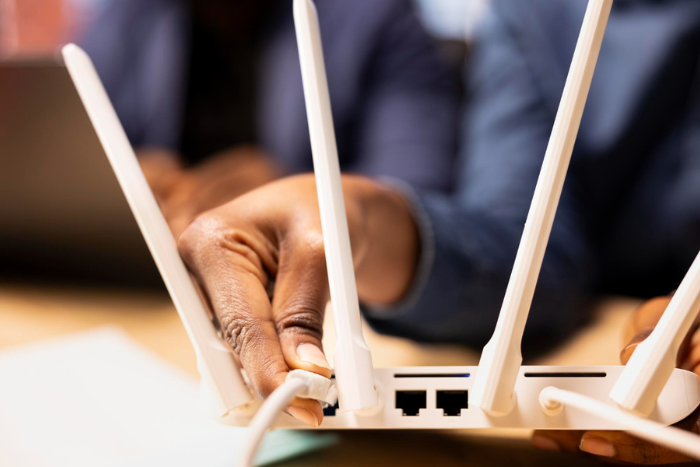
Sharing your home Wi-Fi with friends, relatives, or visitors is convenient. But giving everyone access to the same network used by your personal devices can create unnecessary security and privacy concerns.
Your laptop, smartphone, smart TV, printer, security camera, and other connected devices may all be connected to your primary network. Instead of sharing your main Wi-Fi password with every visitor, you can create a separate guest network.
A guest Wi-Fi network provides internet access to visitors while keeping your primary home network separate. It’s a simple feature that can make your home connectivity more secure, organized, and easier to manage.
Here’s everything you need to know about guest Wi-Fi and how to set one up.
What Is a Guest Wi-Fi Network?
A guest Wi-Fi network is a separate wireless network created through your router specifically for visitors.
Instead of connecting guests to the same Wi-Fi network used by your personal devices, you can provide them with a different network name and password.
For example, your main network could be:
- HomeWiFi
- HomeWiFi_Guest
The guest network allows visitors to access the internet while, depending on your router’s configuration, preventing them from accessing devices connected to your primary network.
If you’re looking for the best broadband connection in Kerala, it’s also worth considering the security and network management features offered by the router provided with your connection.
Why Should You Use a Guest Wi-Fi Network?
1. Protect Your Personal Devices
Your primary Wi-Fi network may connect several devices containing personal information.
Laptops, smartphones, printers, storage devices, smart home products, and other equipment can communicate across a local network. Keeping visitors on a separate network can reduce unnecessary access to your personal devices.
2. Avoid Sharing Your Main Password
Your primary Wi-Fi password doesn’t need to be shared with every guest.
Instead, you can give visitors the guest network credentials. This is especially useful when you frequently have friends, relatives, or other visitors at home.
You can also change the guest password later without having to reconnect all your personal devices.
3. Manage Temporary Internet Access
A guest network makes it easier to provide temporary internet access.
Depending on your router, you may be able to control when the network is available, how many devices can connect, or how much bandwidth guests can use.
These features can be particularly helpful in busy households.
How to Set Up a Guest Wi-Fi Network
The exact process varies depending on your router model, but the general setup is simple.
Step 1: Log In to Your Router
Access your router’s administration page or use the manufacturer’s mobile application.
You may need the administrator credentials provided when the router was installed.
Step 2: Find the Guest Network Setting
Look for options such as:
- Guest Wi-Fi
- Guest Network
- Guest Access
This setting is usually found under wireless or network configuration.
Step 3: Create a Separate Network Name
Give your guest network a name that is easy to identify.
Avoid making it too similar to your main Wi-Fi name, as this could confuse visitors when they are connecting.
Step 4: Create a Strong Password
Use a separate password for the guest network. Even though it is intended for visitors, leaving the network unsecured isn’t recommended.
A unique password also makes it easier to change guest access without affecting your primary network.
Step 5: Enable Guest or Client Isolation
Some routers provide features such as Guest Isolation, AP Isolation, or Client Isolation.
These settings can restrict guest devices from communicating with devices on your primary network and, in some cases, with other guest devices.
The exact options available depend on your router.
Step 6: Check Additional Controls
Modern routers may offer additional controls such as:
- Bandwidth limits
- Access schedules
- Device limits
- Network access restrictions
Review these settings according to your household requirements.
Does Guest Wi-Fi Reduce Internet Speed?
Creating a separate guest network doesn’t automatically make your broadband connection slower.
However, devices connected to the guest network still use your available internet bandwidth.
For example, if guests are streaming videos, downloading large files, or playing online games while other family members are working or studying, everyone is sharing the same broadband connection.
This is why selecting suitable best broadband plans in Kerala based on the number of users and devices in your home is important.
When Is Guest Wi-Fi Most Useful?
A guest network can be especially useful if:
- You regularly have visitors
- Several people use your home Wi-Fi
- You have smart home devices
- You work from home
- You have security cameras or connected appliances
- You want to avoid sharing your primary Wi-Fi password
For larger homes, choosing the best fiber broadband in Kerala along with a properly configured wireless network can provide a better overall connectivity experience.
A Guest Network Is Not a Replacement for Basic Security
While guest Wi-Fi adds an extra layer of separation, it doesn’t mean you can ignore basic security.
Keep your router firmware updated, use strong passwords, change default administrator credentials, and use modern wireless security standards where supported.
You should also regularly review the devices connected to your network.
Conclusion
A guest Wi-Fi network is one of the simplest ways to improve the organization and privacy of your home network.
It allows visitors to browse the internet without requiring access to your primary Wi-Fi credentials and can help separate temporary devices from your personal equipment.
Along with selecting the best internet connection in Kerala, configuring your home network correctly can make everyday connectivity safer and more convenient.
If your router supports guest networking, setting it up takes only a few minutes and can make a meaningful difference to how you manage Wi-Fi at home.