
 8086011333
IP6OS

Follow These Steps
- Select “Start”

- Select “Control Panel”
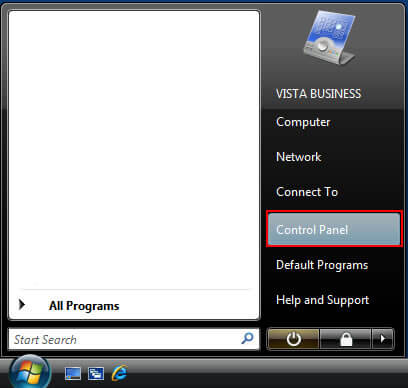
- Select “Network and Sharing Center”

- Select “View Status”
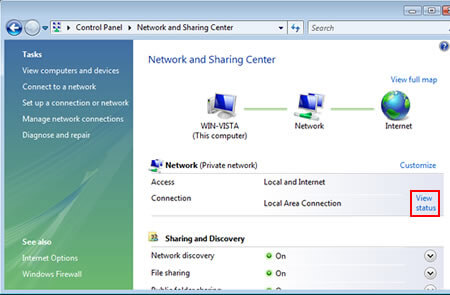
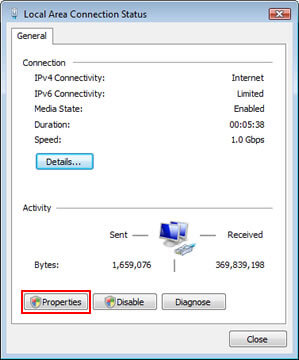
- Select “Properties”
- Put a “check mark” next to Internet Protocol Version 6 (TCP/IPv6)
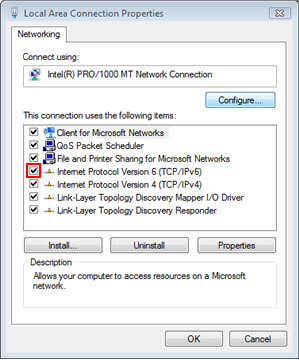
- Select “OK”

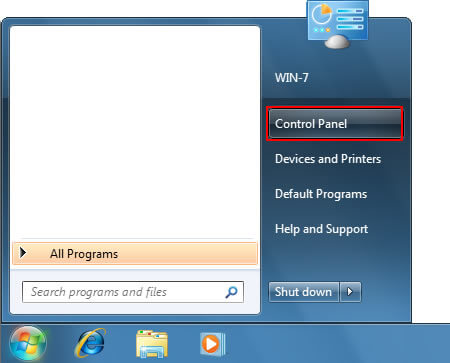
- Select “Start”

- Select “Control Panel”
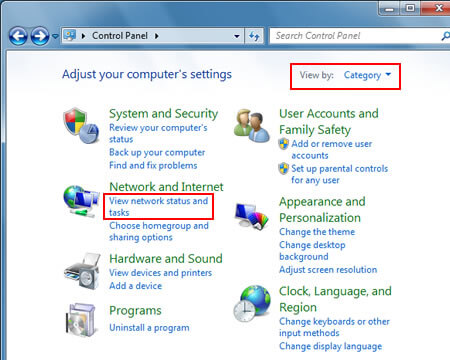
- Set View by to “Category”. Select “View network status and tasks”.
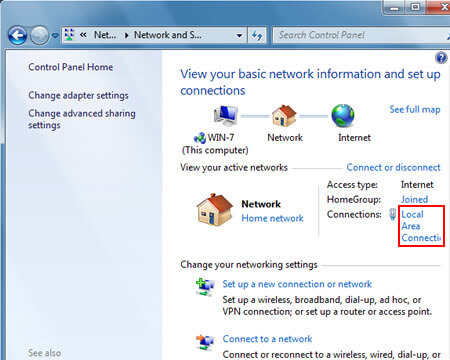
- Select “Local Area Connection”
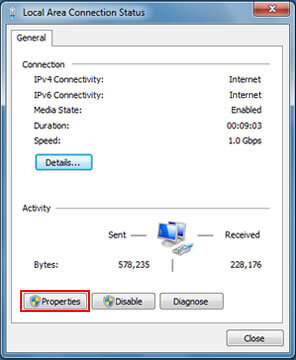
- Select “Properties”
- Put a “check mark” next to Internet Protocol Version 6 (TCP/IPv6)

- Select “OK”

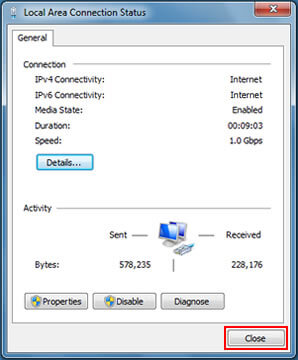
- Select “Close”. To learn more, check out the IPv6 section.
- Open the charm bar. Here are 3 different ways you can open the charm bar:
Mouse: Move your mouse to the very top-right of the screen
Touch screen: Swiping in from the right-hand side of the screen
Keyboard: Hold down the “Windows Key” + C at the same time - Select “Search”.
- Type control.
- Select “Control Panel”.
- Select “Properties”
- Put a “check mark” next to Internet Protocol Version 6 (TCP/IPv6)
- Select “OK”
- Select “Close”. To learn more, check out the IPv6 section.
- Select “Close”. To learn more, check out the IPv6 section.
- Select “Close”. To learn more, check out the IPv6 section.
- Select “Close”. To learn more, check out the IPv6 section.
- Select “Close”. To learn more, check out the IPv6 section.